
Installation
Install Ambient Desktop from packaged artifacts or build it from source on macOS, Windows, and Linux.
Settings
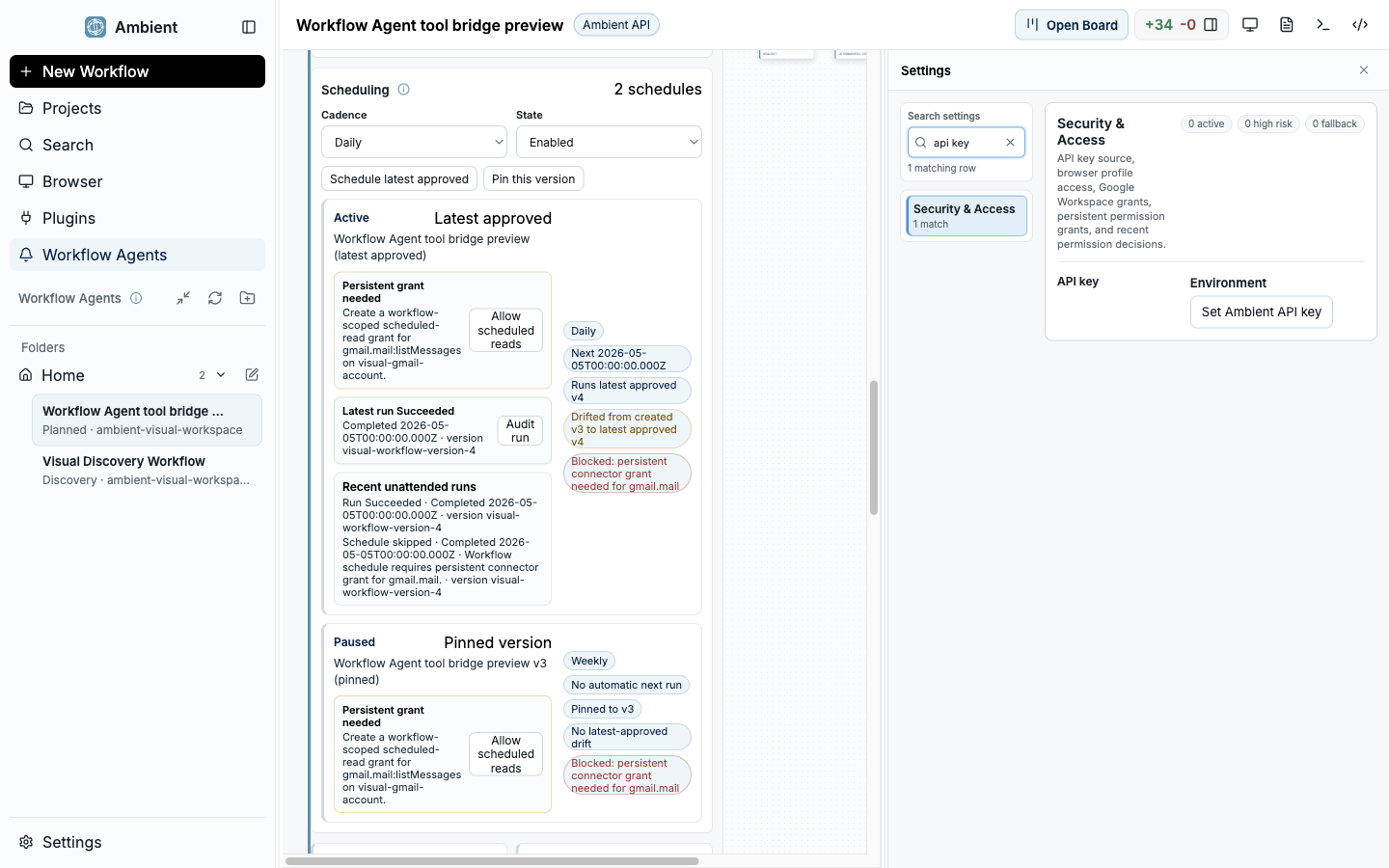
Settings search keeps provider, permission, and runtime configuration discoverable.
Choose the right path
Most users should install the packaged app from the stable update channel. Developers working on Ambient Desktop itself should build from source when they need local code changes, debug symbols, or platform-specific packaging validation.
The current stable channel is version 0.1.96. Prefer versioned URLs when documenting a reproducible setup and latest aliases when a user simply wants the newest stable artifact.
macOS Apple Silicon
Use the signed and notarized DMG for normal installation. The ZIP is useful for update testing and artifact inspection.
- Latest DMG: https://updates.ambient.xyz/desktop/stable/ambient-desktop-latest-mac-arm64.dmg
- Latest ZIP: https://updates.ambient.xyz/desktop/stable/ambient-desktop-latest-mac-arm64.zip
- Versioned DMG: https://updates.ambient.xyz/desktop/stable/Ambient%20Desktop-0.1.96-mac-arm64.dmg
- Versioned ZIP: https://updates.ambient.xyz/desktop/stable/Ambient%20Desktop-0.1.96-mac-arm64.zip
Windows x64
Use the NSIS installer for normal installation. The Windows artifact exists, but early builds may show SmartScreen or reputation prompts until Authenticode signing and installer reputation mature.
- Latest installer: https://updates.ambient.xyz/desktop/stable/ambient-desktop-latest-win-x64.exe
- Latest ZIP: https://updates.ambient.xyz/desktop/stable/ambient-desktop-latest-win-x64.zip
- Versioned installer: https://updates.ambient.xyz/desktop/stable/Ambient%20Desktop-0.1.96-win-x64.exe
- Versioned ZIP: https://updates.ambient.xyz/desktop/stable/Ambient%20Desktop-0.1.96-win-x64.zip
Linux x64
Use the AppImage for a portable install or the deb package for Debian/Ubuntu style desktops. Linux package signing is still a release hardening item.
- Latest AppImage: https://updates.ambient.xyz/desktop/stable/ambient-desktop-latest-linux-x86_64.AppImage
- Latest deb: https://updates.ambient.xyz/desktop/stable/ambient-desktop-latest-linux-amd64.deb
- Versioned AppImage: https://updates.ambient.xyz/desktop/stable/Ambient%20Desktop-0.1.96-linux-x86_64.AppImage
- Versioned deb: https://updates.ambient.xyz/desktop/stable/Ambient%20Desktop-0.1.96-linux-amd64.deb
Verify before trust
Use release.json and SHA256SUMS to verify artifact names, sizes, and hashes when installing into a development or release-validation environment.
Packaged install: macOS
macOS is the most straightforward packaged path today. The DMG is the recommended install artifact for Apple Silicon machines.
Download the DMG
Use the latest DMG for normal use or the versioned 0.1.96 DMG when reproducing a specific release.
Open the disk image and drag Ambient Desktop into Applications
Launch from Applications rather than directly from the mounted disk image so user data, updates, and OS permissions behave normally.
Approve normal macOS prompts
The app may request access needed for local development workflows such as files, terminal sessions, browser automation, or notifications. Grant only the permissions required for the workflow you are testing.
Verify first launch
Open Settings and confirm provider configuration, local runtime status, browser capability status, and plugin/capability health checks before running high-impact tasks.
Packaged install: Windows
Windows packaging is active and published on the stable channel. The important difference is trust UX: until Windows signing and reputation are fully established, users may see SmartScreen, Windows Defender Firewall, or installer reputation prompts.
Treat those prompts as part of the installation documentation, not as an unexpected failure. Developers validating Windows should record which prompt appeared, which artifact was used, and whether the installed app launched from a normal user path.
Download the x64 installer
Use the latest or versioned NSIS installer from the stable channel. Keep the ZIP for artifact inspection or manual unpack testing.
Handle SmartScreen or reputation warnings deliberately
If Windows reports that the app is unrecognized, verify the artifact URL and SHA-256 first. Only proceed when the artifact matches the published stable manifest.
Install for the current user
Accept the installer prompts and launch Ambient Desktop from the Start Menu or desktop shortcut rather than directly from a temporary downloads directory.
Review firewall prompts
Local runtime servers, browser bridges, or model hosting may trigger Windows Defender Firewall prompts. Allow only the network scopes required by the workflow; most local runtime flows should stay on localhost.
Run first-launch checks
Confirm the app opens, Settings loads, terminal/runtime checks run, and any Windows-specific blocked capabilities are clearly labeled rather than silently failing.
Packaged install: Linux
Linux supports a portable AppImage and a Debian package. Use the AppImage when you want minimal system mutation; use the deb when you want a desktop-integrated install on Debian or Ubuntu style systems.
AppImage
Download, mark executable, and run from a user-owned location.
chmod +x 'Ambient Desktop-0.1.96-linux-x86_64.AppImage'
./'Ambient Desktop-0.1.96-linux-x86_64.AppImage'
Debian package
Install with apt so dependencies and desktop integration are handled by the package manager.
sudo apt install ./Ambient\ Desktop-0.1.96-linux-amd64.debContainer-backed capabilities
ToolHive-backed MCP capabilities need Docker, Podman, or another supported container runtime. Verify the runtime before installing default web extraction capabilities.
Keyring-sensitive integrations
Google Workspace and other account-backed capabilities depend on the desktop keyring or an explicit fallback path. Headless Linux hosts need extra care.
Build from source
Source builds are for Ambient contributors and platform validation. Install Git, Node.js, and pnpm first, then clone the repository and build. Build each platform's artifacts on that platform so Electron native modules and signing behave correctly. Builds are unsigned unless signing credentials exist in your environment.
Each block below is self-contained — copy it, paste it into your terminal, and you have the source cloned, dependencies installed, and either a dev session or a packaged build.
macOS
Clone, install, then run in development or build a DMG. Signed release builds additionally need a Developer ID and notarization credentials.
git clone https://github.com/ambient-xyz/AmbientDesktop.git
cd AmbientDesktop
pnpm install
pnpm run dev          # run in development
pnpm run dist:mac # build the macOS app (DMG + ZIP)Windows
Install Git, Node.js, pnpm, Python, and the Visual Studio Build Tools first. Build on real Windows x64 so native modules match the platform.
git clone https://github.com/ambient-xyz/AmbientDesktop.git
cd AmbientDesktop
pnpm install
pnpm run dev          # run in development
pnpm run dist:win # build the Windows installer (NSIS + ZIP)Linux
Build Linux packages on Linux. Native modules such as node-pty and better-sqlite3 are rebuilt and verified under Electron during the build.
git clone https://github.com/ambient-xyz/AmbientDesktop.git
cd AmbientDesktop
pnpm install
pnpm run dev          # run in development
pnpm run dist:linux # build the AppImage + .debVerify the packaged build
After packaging, confirm the native modules load inside the packaged Electron runtime before you publish or share artifacts.
pnpm run test:packaged
pnpm run verify:packaged-native
Post-install verification
- Confirm the installed version and update channel.
- Open Settings and verify provider configuration, local runtime status, browser capability status, and plugin/capability diagnostics.
- Install curated defaults only after descriptor, runtime, permission profile, and source provenance are visible.
- Run a low-risk coding or documentation task first, then inspect the plan, artifacts, browser evidence, and Git summary before allowing broader automation.
- Use Ambient-managed secret flows for provider keys and account integrations. Do not paste credentials into chat or documentation artifacts.
Installation FAQ
Should I use the latest alias or a versioned URL?
Use latest aliases for ordinary installs. Use versioned URLs and SHA256SUMS when reproducing a release, writing support instructions, or validating a machine for release work.
Why can Windows show extra prompts?
Early Windows artifacts may not yet have mature Authenticode signing or installer reputation. SmartScreen and firewall prompts are expected until that hardening is complete.
Does installing the app make every capability available?
No. The desktop app can launch without every runtime. ToolHive-backed MCPs, local model hosting, browser automation, Google Workspace, and future Ambient Mini mining each have their own health checks and permission surfaces.
Can I build production artifacts on any platform?
No. macOS artifacts are built on macOS, Linux artifacts should be built on Linux, and Windows artifacts should be built on Windows because native modules and signing behavior are platform-specific.